
Tutorial
A first-hour path through Electros LaunchPad: confirm health, launch a VM, open a shell, run a small model, and call the OpenAI-compatible gateway.
1. Confirm the shell is healthy
- Open Electros LaunchPad.
- Look at the sidebar footer — it should say All systems healthy.
- Open Installers and confirm llmfit, llama.cpp, and MLX show Ready.
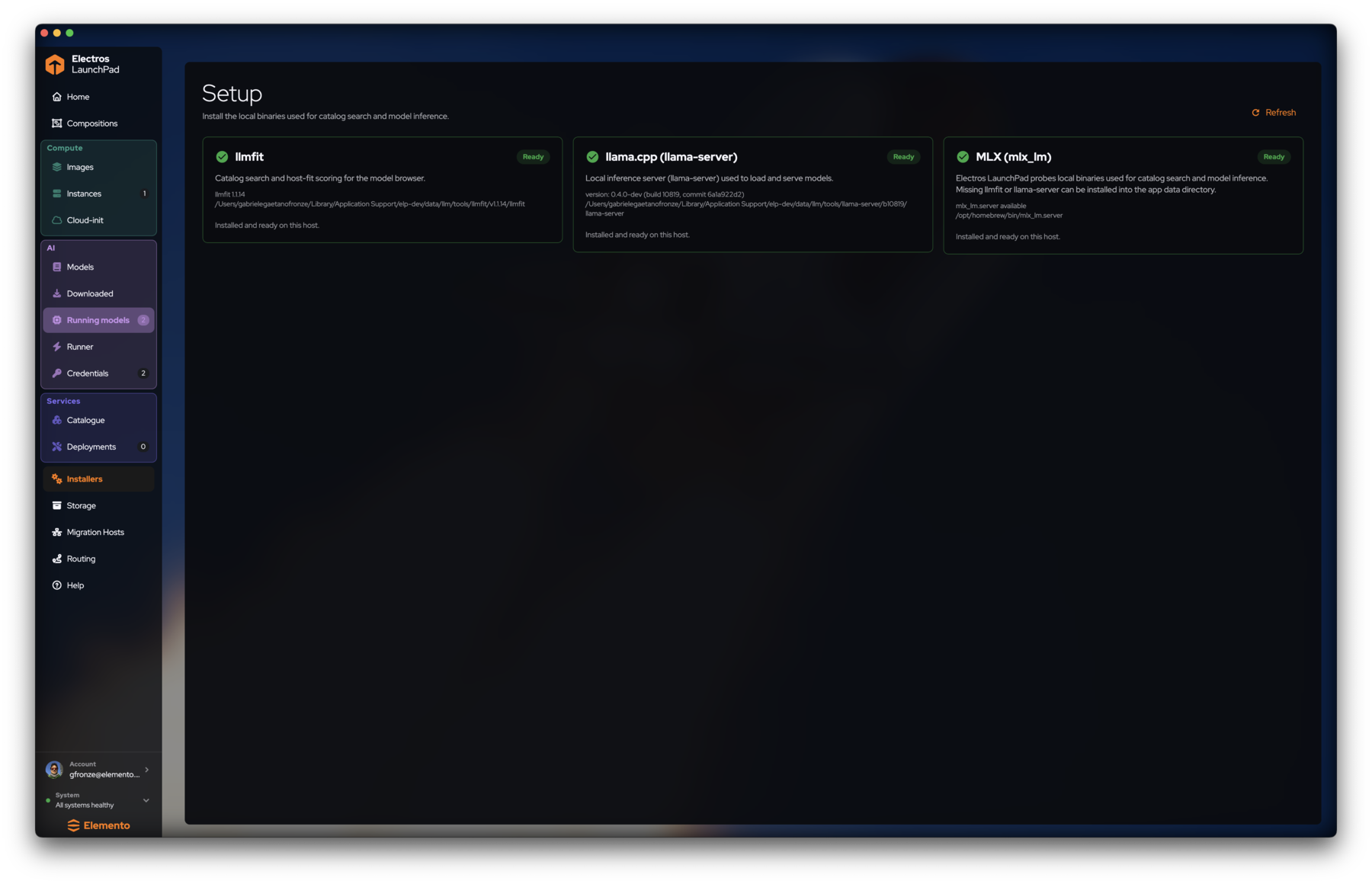
Details: Getting started, System tools.
2. Launch a VM from Images
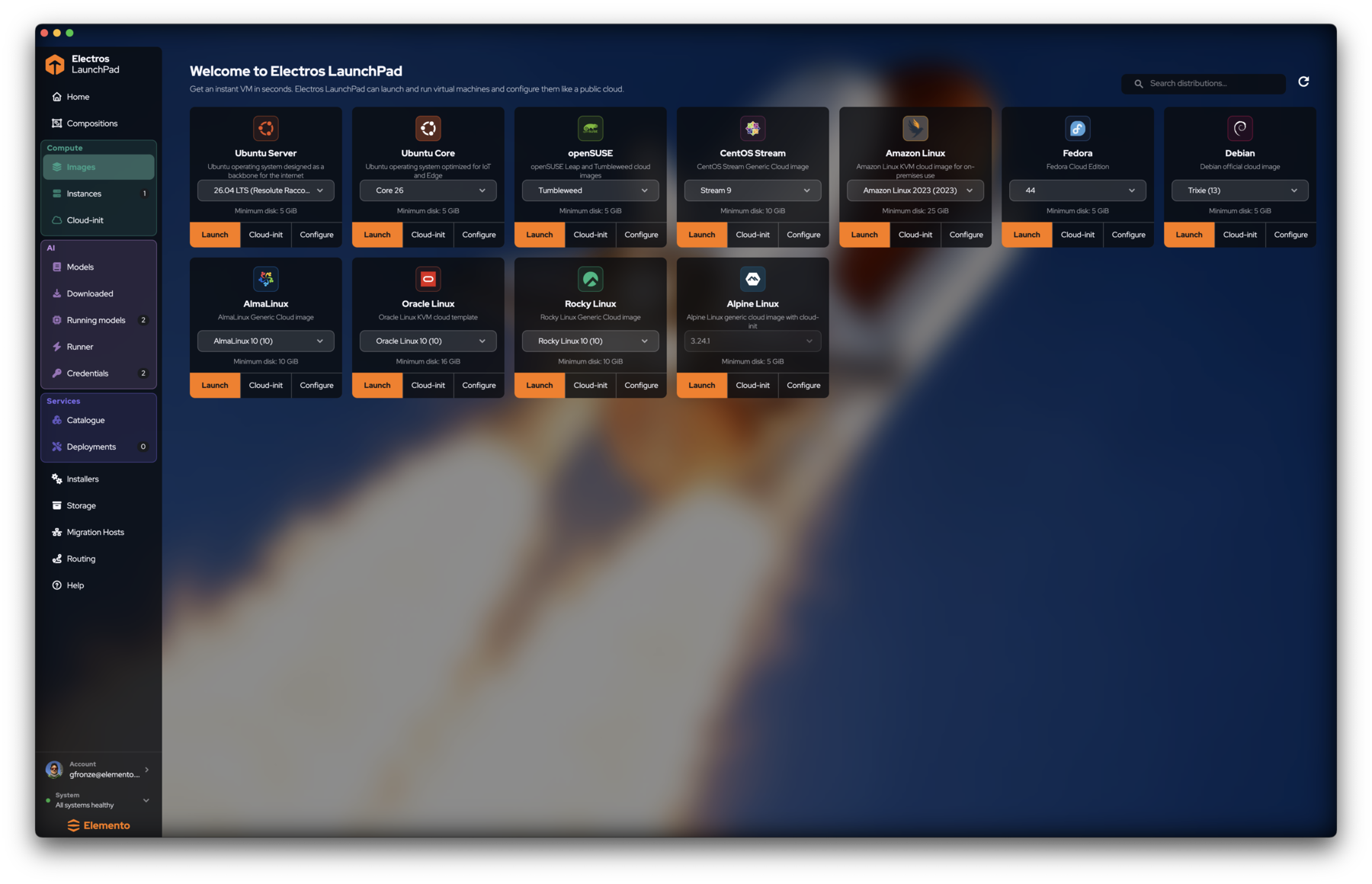
- Go to Compute → Images.
- Pick a light image (Alpine or Ubuntu Server).
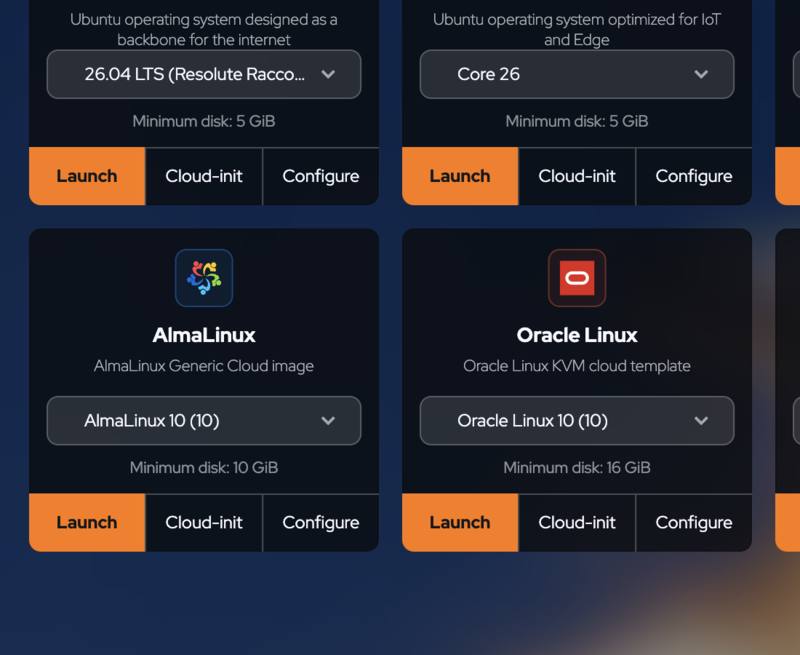
- Choose a version; note Minimum disk.
- Click Launch.
3. Open the instance shell
- Open Compute → Instances.
- Wait until STATE is Running.
- Click the shell icon (or the name) → stay on Shells.
- Run a simple command at the prompt.
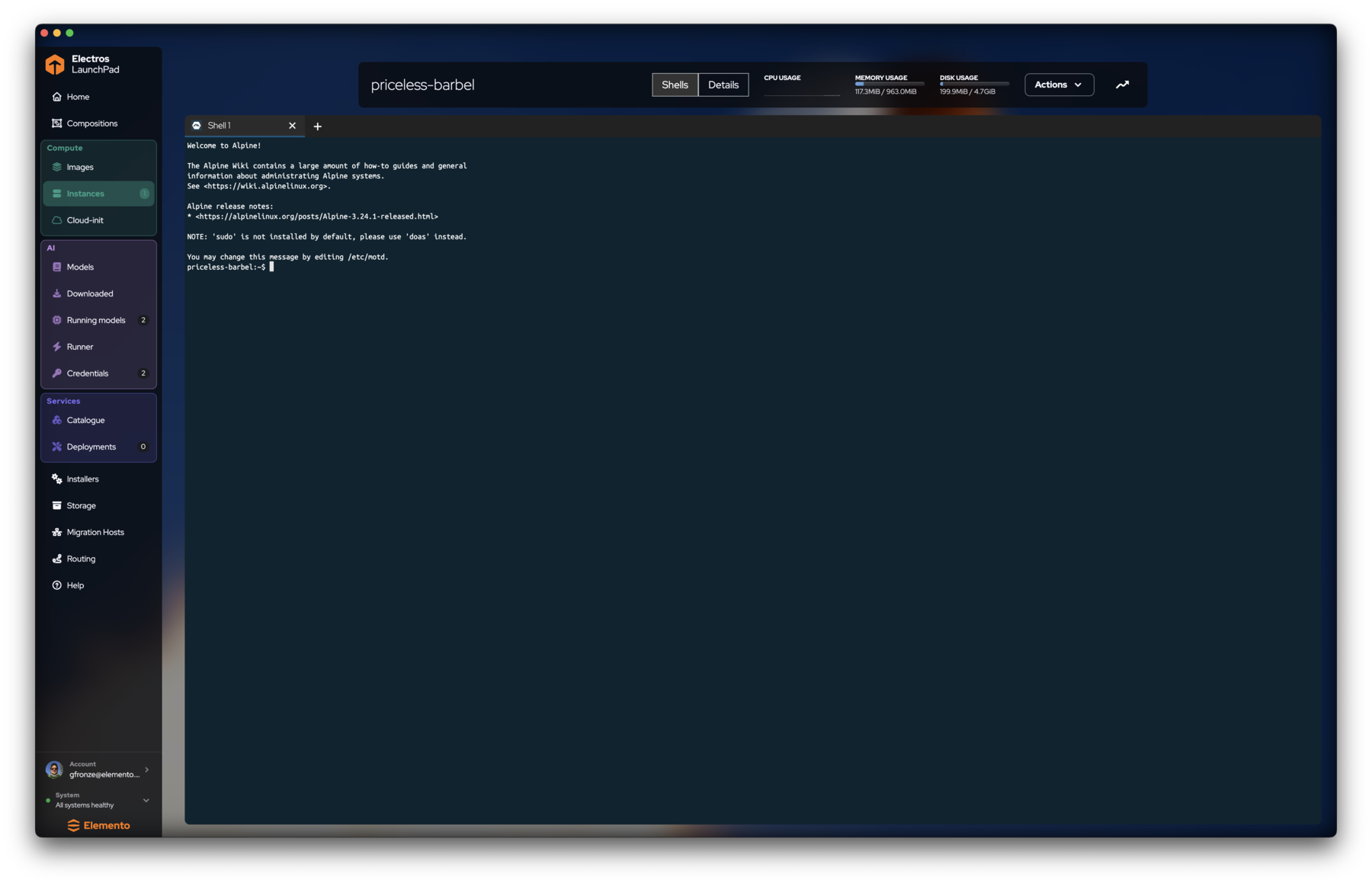
On Alpine, prefer doas if sudo is missing.
4. Download and load a model
- AI → Models → Top picks.
- Download a small chat model.
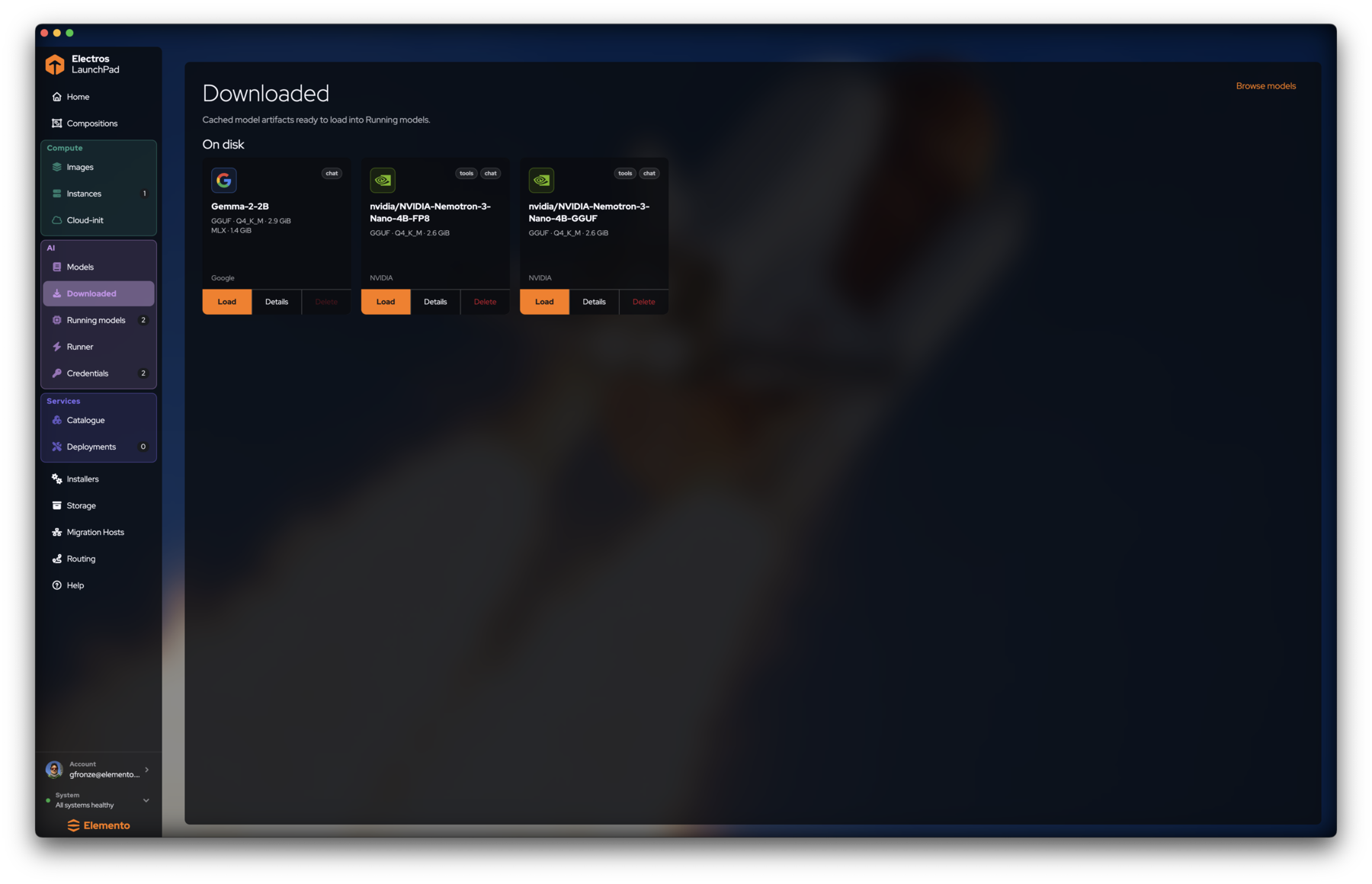
- AI → Downloaded → Load.
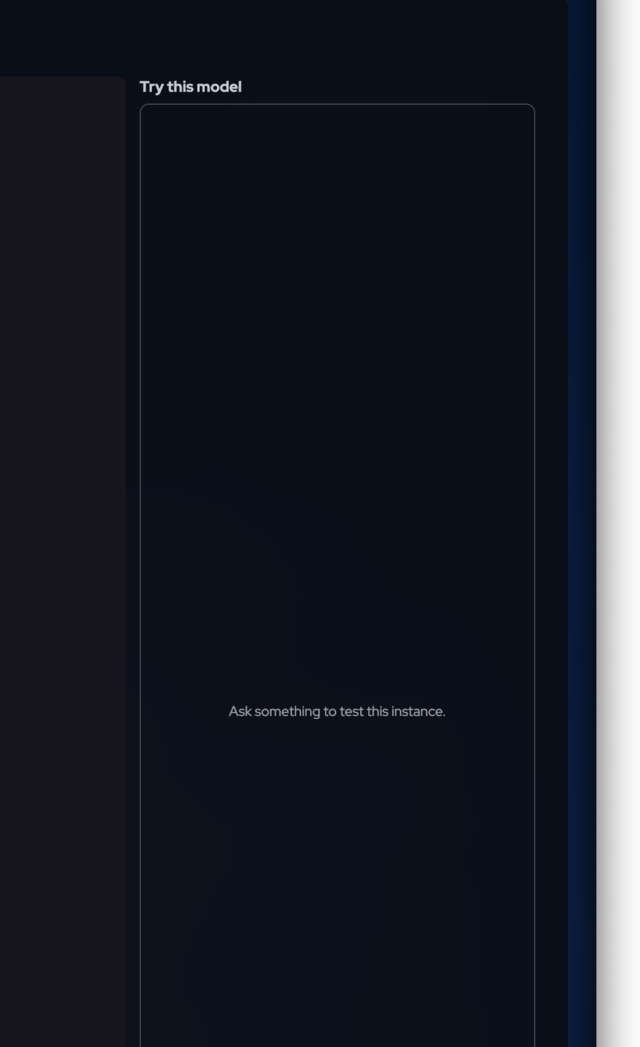
- Open Running models, click the model, send a prompt in Try this model.
5. Create a gateway key
- Open AI → Credentials.
- Create key under API keys; copy the
sk-elp-…secret. - From this Mac:
bash
curl http://127.0.0.1:11434/v1/models \
  -H "Authorization: Bearer sk-elp-YOUR_KEY"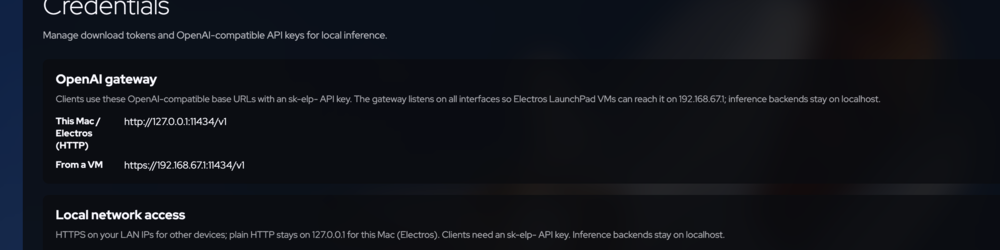
6. Optional: deploy Open WebUI
- Services → Catalogue → Open WebUI → Deploy.
- Point Open WebUI at the gateway URL + your key.
- Chat against the model you loaded.
Where to go next
- Compositions — multi-node stacks
- Credentials & runner — LAN HTTPS and cloud providers
- CLI create instance — same VMs from
elp