
Compute
Compute covers OS images, running instances, and cloud-init user-data. The usual path is Images → Launch → Instances → Shell.
Images
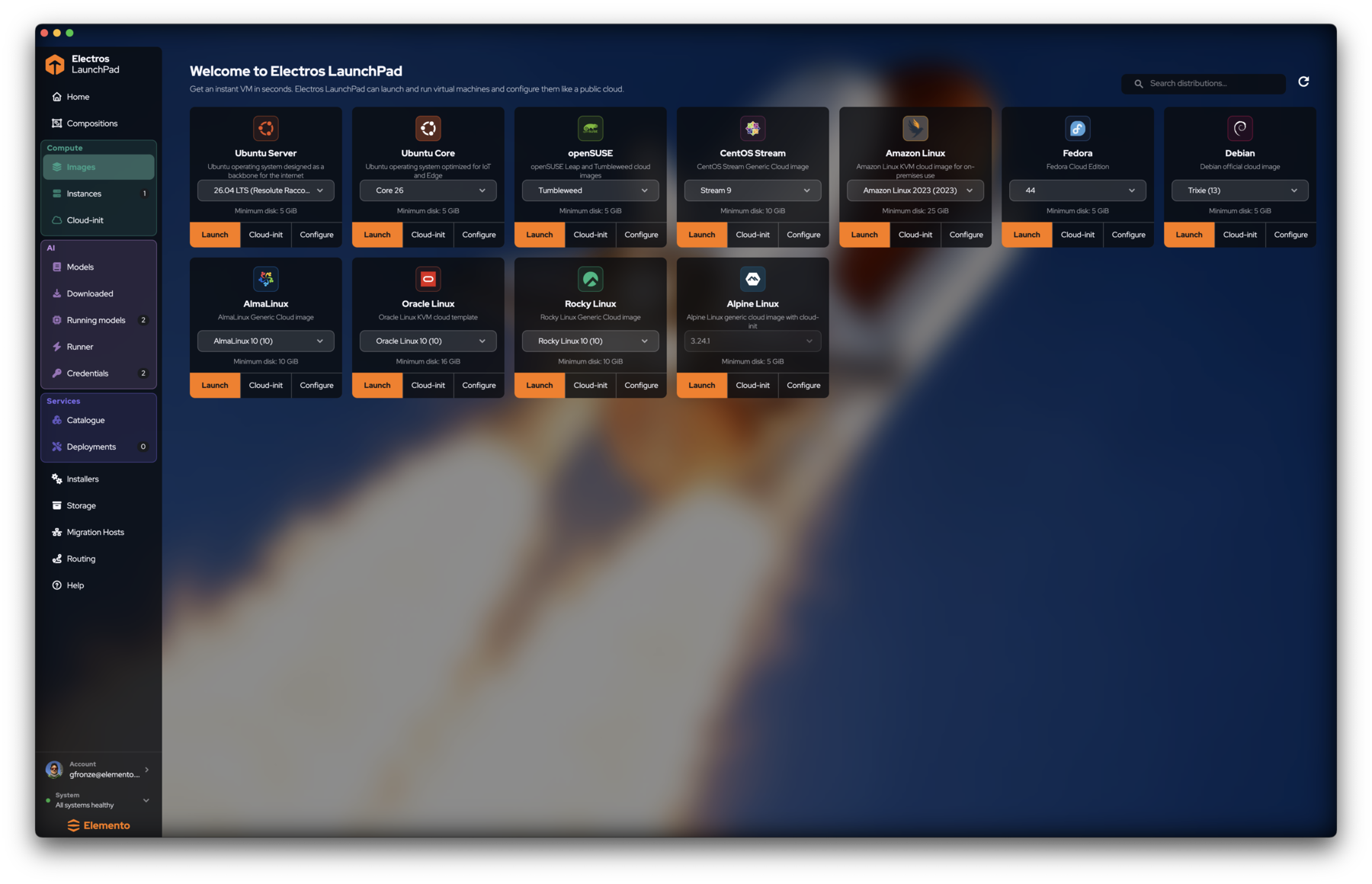
Open Compute → Images. Each card is a distribution:
- Choose a version from the dropdown (for example
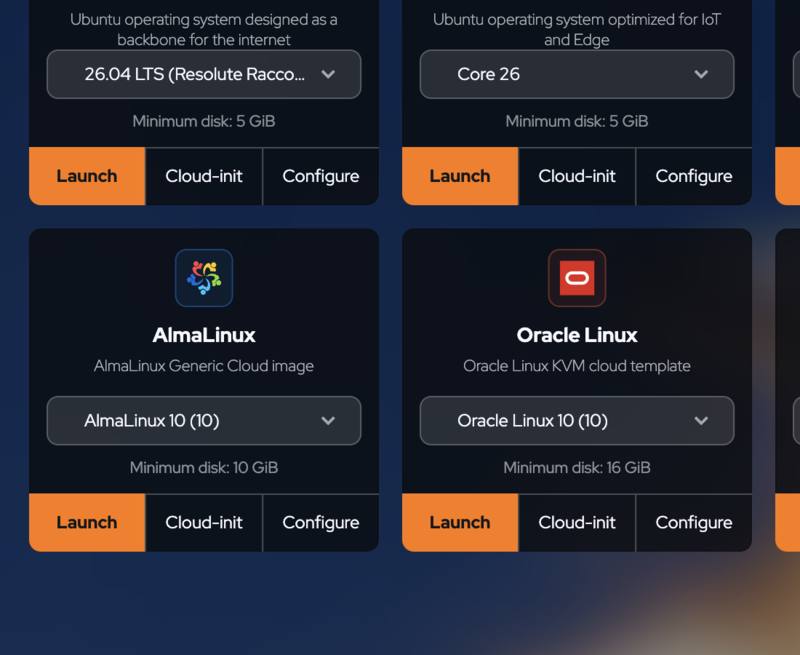
24.04 LTSor3.24.1). - Check Minimum disk against free space on the host (see Home → System overview or Storage).
- Click Launch for a quick start with defaults.
- Use Configure when you need custom CPUs, memory, disk, or name before create.
- Use Cloud-init on the card to attach a saved user-data config at launch time.
Common images include Ubuntu Server/Core, Fedora, Debian, AlmaLinux, Rocky, Alpine, openSUSE, CentOS Stream, Amazon Linux, and Oracle Linux.
Instances
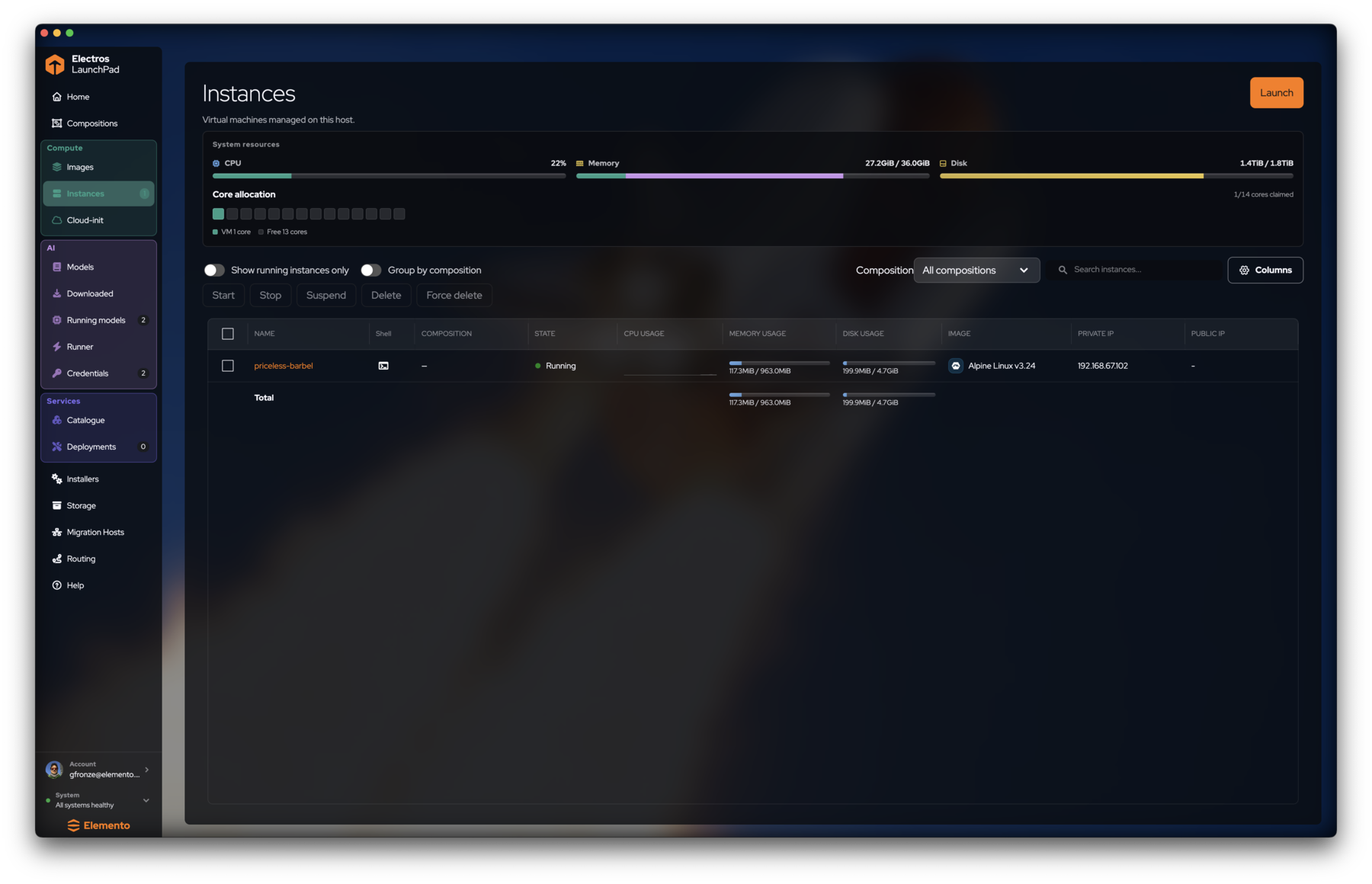
Compute → Instances lists VMs on this host.
Before you act
- Read the System resources bars and Core allocation grid. LaunchPad shows claimed VM cores vs free cores so you do not oversubscribe blindly.
- Filters: Show running instances only, Group by composition, composition dropdown, search, and Columns.
Lifecycle
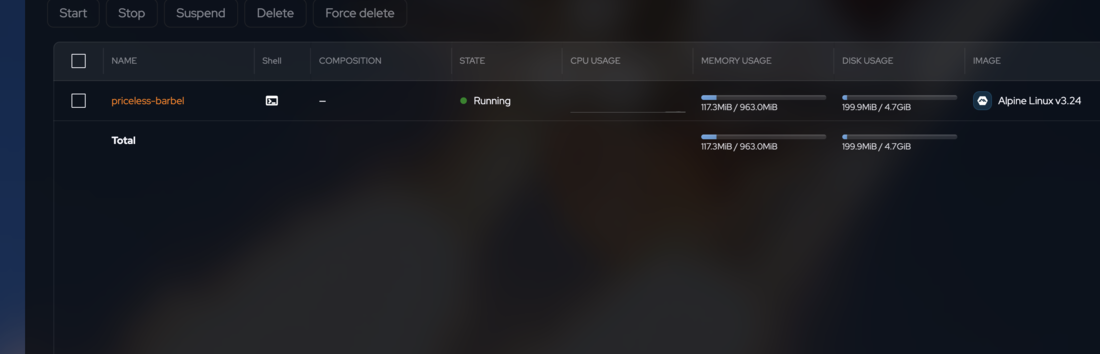
- Select one or more rows with the checkbox.
- Use the toolbar: Start, Stop, Suspend, Delete, Force delete (enabled only when a selection exists).
- Click the instance name (or the shell icon) to open the detail / shell view.
- Launch (top right) jumps back to image selection.
Instance shell
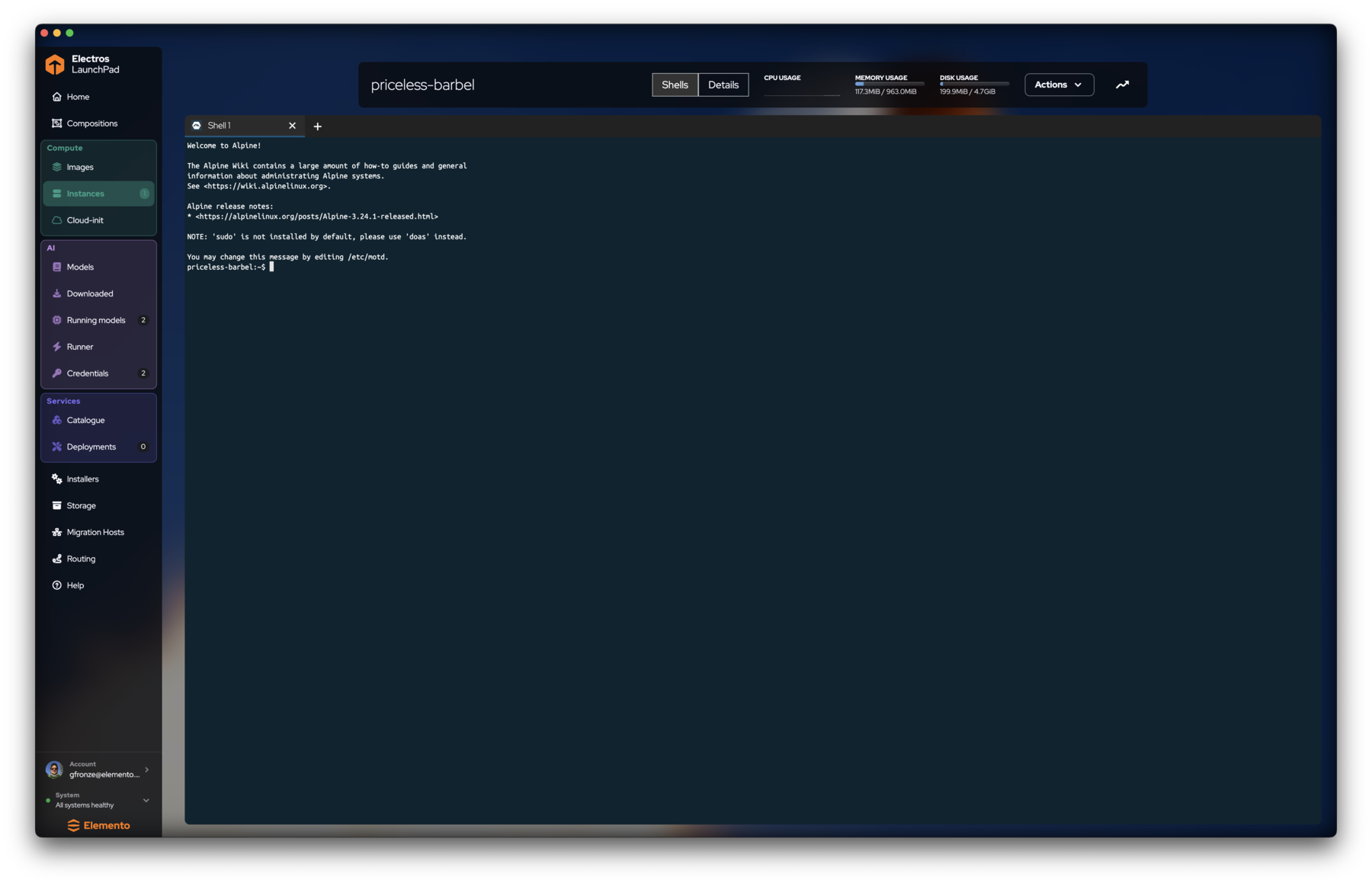
Inside an instance you get two views: Shells and Details.
- Open the instance from the table.
- Stay on Shells for an in-app terminal. Use + to open another tab.
- Watch the header gauges (CPU, memory, disk) while you work.
- Use Actions for lifecycle operations without returning to the table.
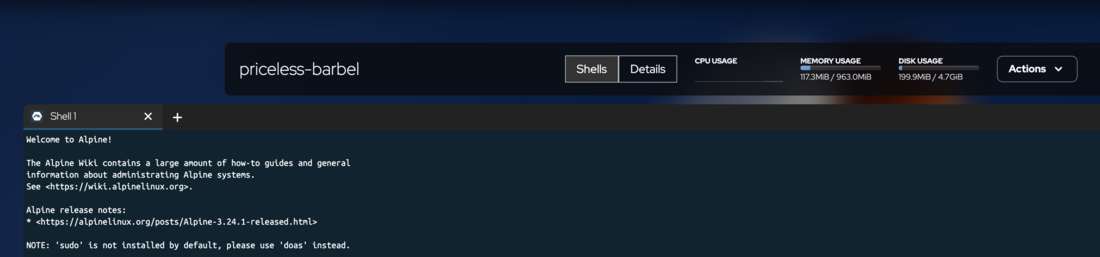
sudo may be missing — use doas instead.CLI equivalent
The same VM can be managed with elp:
bash
elp launch alpine
elp list
elp shell priceless-barbel
elp stop priceless-barbel
elp delete priceless-barbel
elp purge
See Create an instance and CLI reference.
Cloud-init
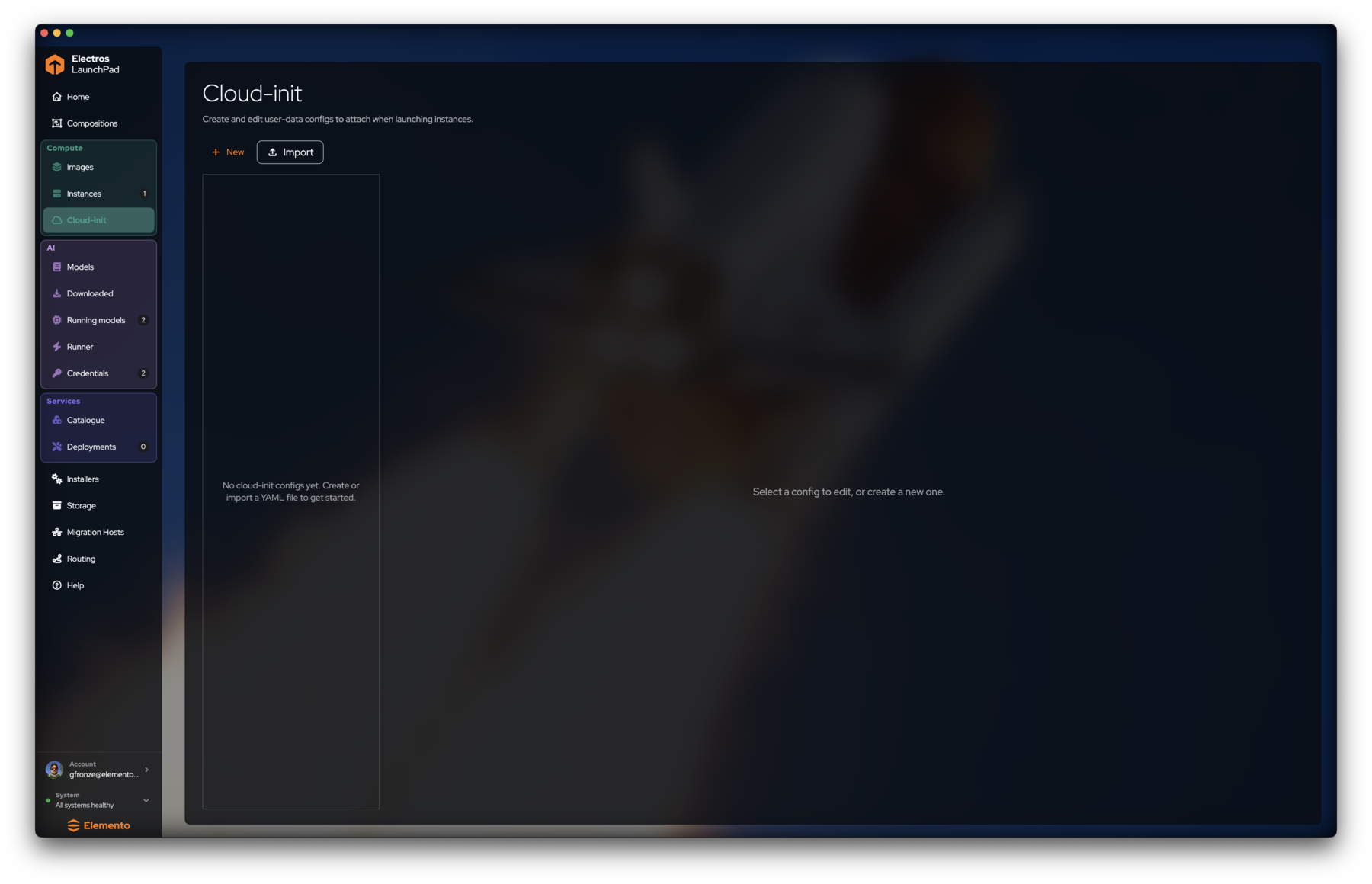
Compute → Cloud-init stores reusable user-data YAML:
- Click + New to create a config in the editor, or Import an existing file.
- Select a config in the left list to edit it on the right.
- Attach it when launching from Images (card → Cloud-init) or from a composition service that expects first-boot setup.
Marketplace services under Catalogue also inject cloud-init automatically when you Deploy — you do not have to hand-write YAML for those packs.
Next
- AI models — run a local LLM beside your VM
- Compositions — launch several compute pieces together