
Compositions
A composition is a named group of instances launched together — for example a Redis and a Postgres VM for the same app, or an Open WebUI service wired to a local LLM. You manage the list under Compositions, and you build the graph on the Compose tab.
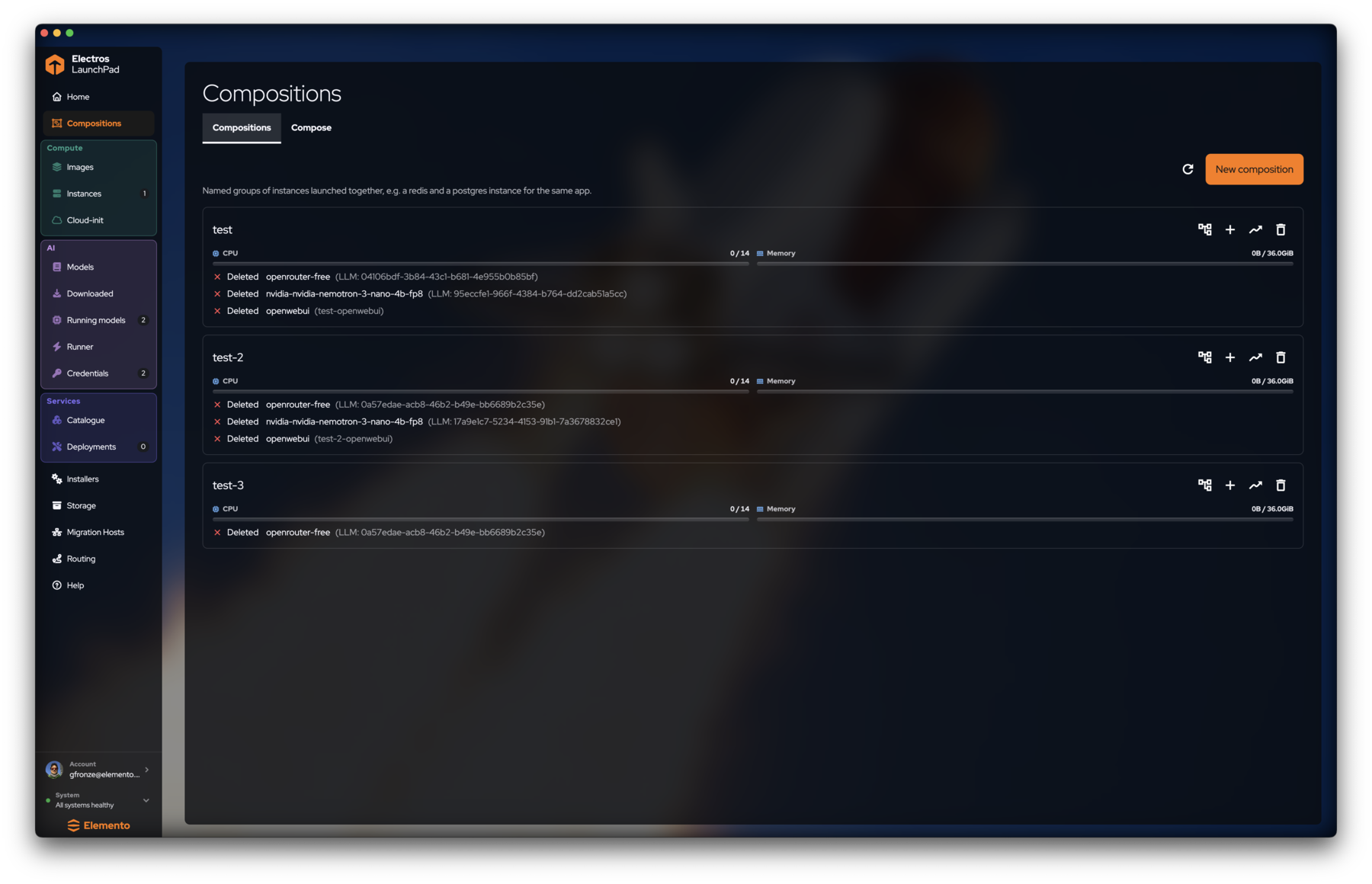
Compositions list
Open Compositions in the sidebar. Each row is a composition:
- Name on the left
- CPU / memory bars for the group
- Member instances (VMs, LLMs, services), with state
- Row actions: open related views, add members, monitor, delete
Use New composition (orange) to create an empty group, then switch to Compose to place nodes.
TIP
Deleted members still appear in the list until you clean the composition. That is normal after you tear down a stack — recreate or remove the stale rows when you are done.
Compose canvas
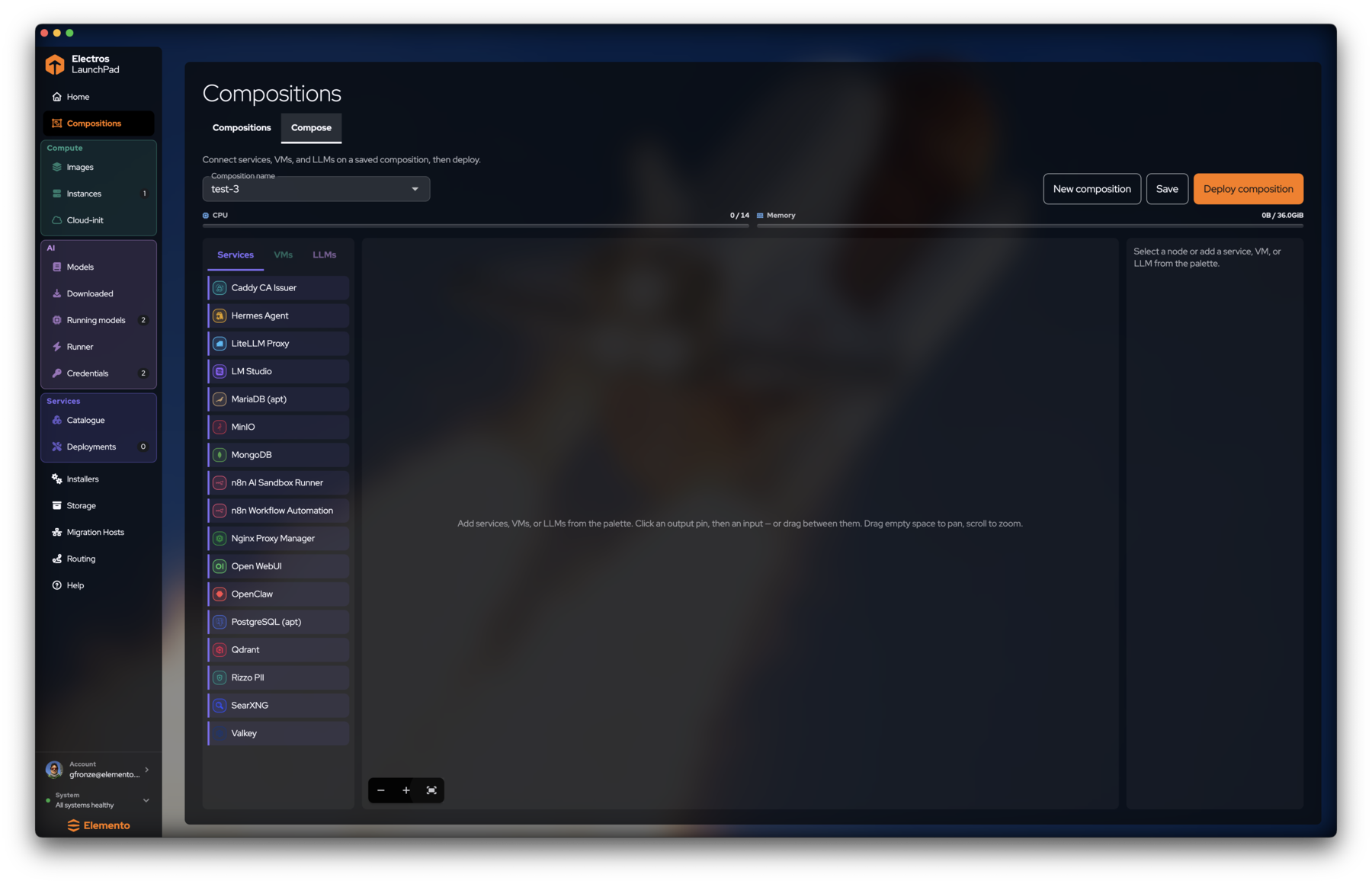
- Open Compositions → Compose.
- Pick or create the composition name in the header dropdown.
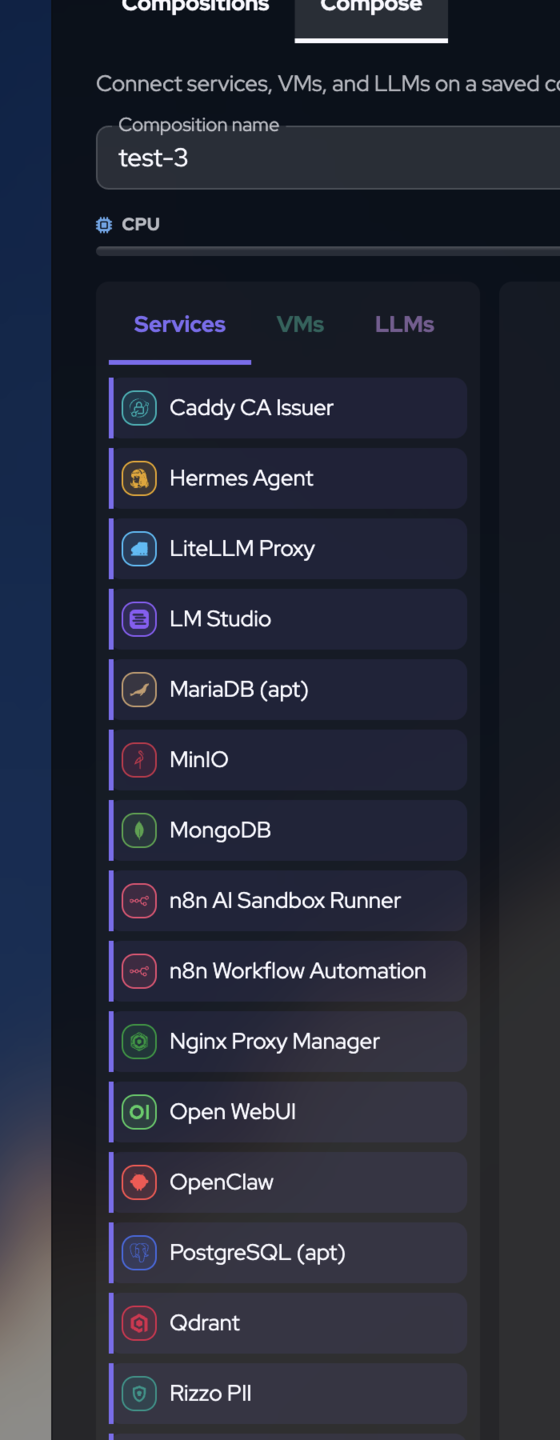
- Drag items from the left palette (Services, VMs, or LLMs) onto the canvas.
- Connect nodes: click an output pin, then an input — or drag between pins.
- Pan by dragging empty space; scroll to zoom. Use the
+/-/ fit controls at the bottom-left of the canvas. - Select a node to edit it in the right property panel.
- Save, then Deploy composition when you are ready to provision.

When to use a composition
| Situation | Prefer |
|---|---|
| One throwaway VM | Images → Launch (no composition needed) |
| App stack (DB + UI + model) | Composition + Deploy composition |
| Same members relaunched often | Save the composition and redeploy |