
Getting started
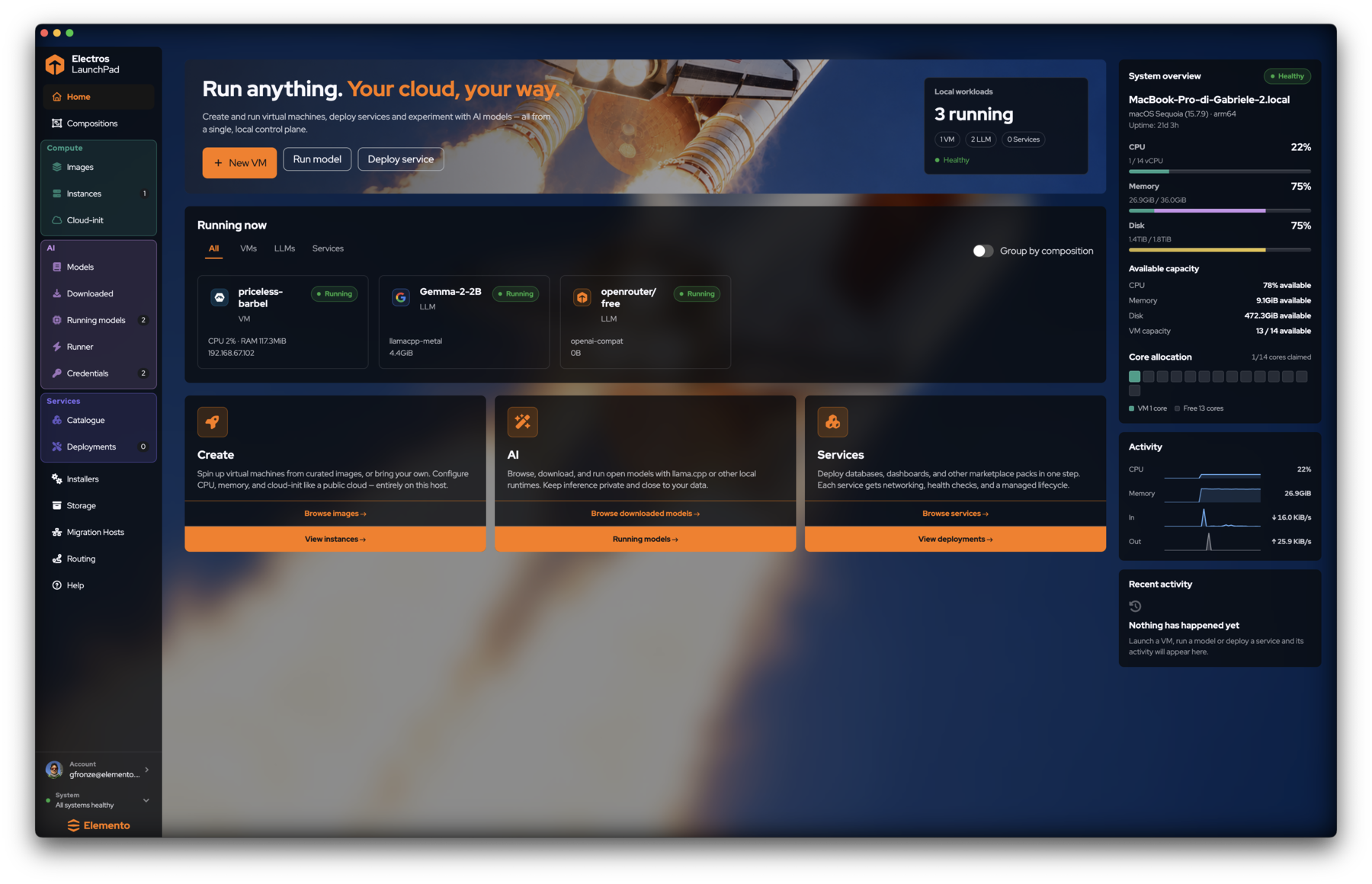
Electros LaunchPad is the local screen for VMs, AI models, and marketplace services. You do not SSH into a host to start: you pick an action here, and LaunchPad talks to the local daemon (elpd) for you.
What the shell is for
LaunchPad is a local control plane:
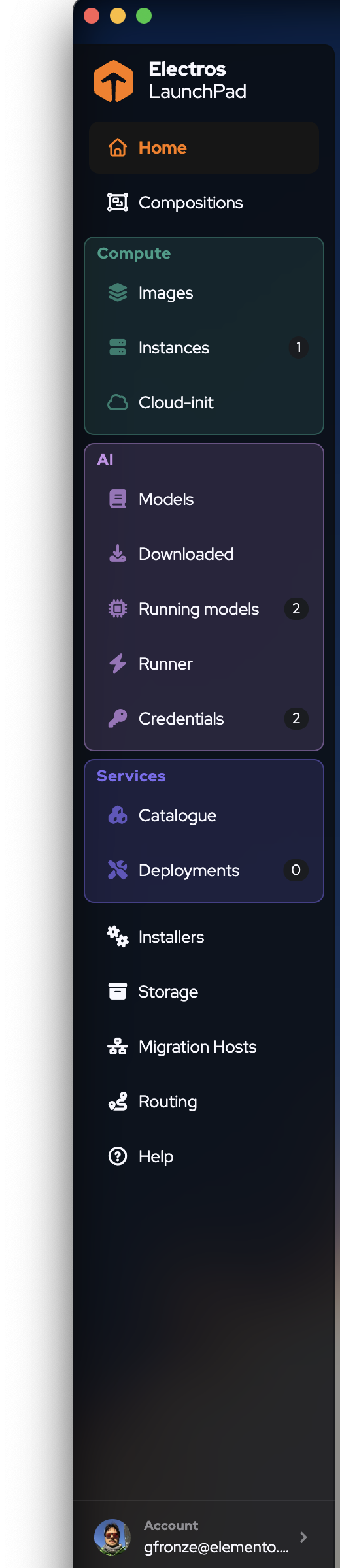
- The sidebar never creates a resource. It only moves you.
- The page on the right is where you read inventory or change it.
- The footer is the first thing to check when a list is empty or a button does nothing. All systems healthy means the daemons LaunchPad depends on are responding. If that line turns red, fix health before debugging the form.
The sidebar
| Area | Pages | What you do there |
|---|---|---|
| Top | Home, Compositions | Fleet glance; named groups of workloads |
| Compute | Images, Instances, Cloud-init | Browse OS images, manage VMs, edit user-data |
| AI | Models, Downloaded, Running models, Runner, Credentials | Find models, load them, pick accelerators, manage keys |
| Services | Catalogue, Deployments | Deploy ready-made tools into their own VMs |
| Tools | Installers, Storage, Migration Hosts, Routing, Help | Binaries, disk usage, peer hosts, port forwards |
Home dashboard
Home answers three questions: what can I create, what is running, and how loaded is this machine?
Primary actions


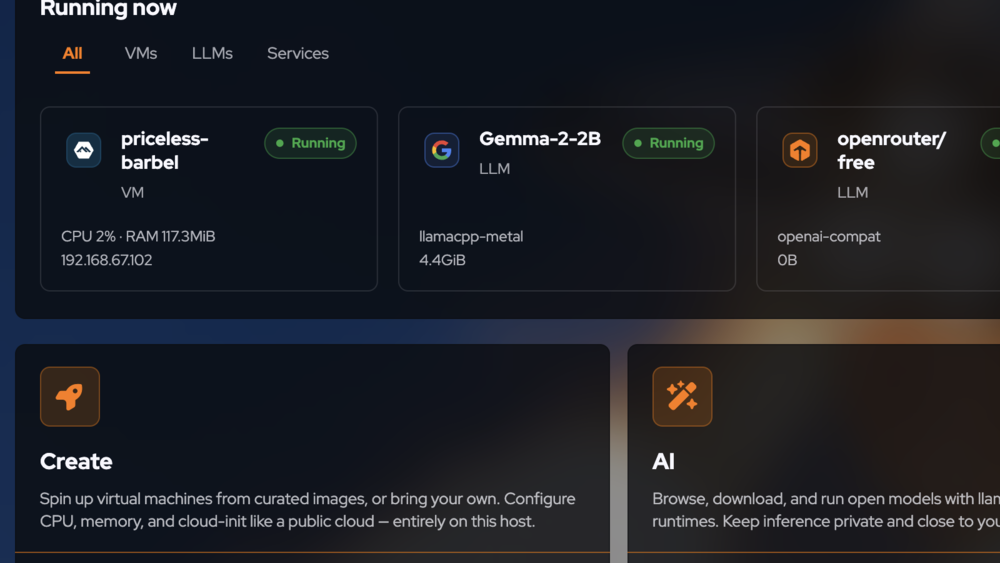
Running now
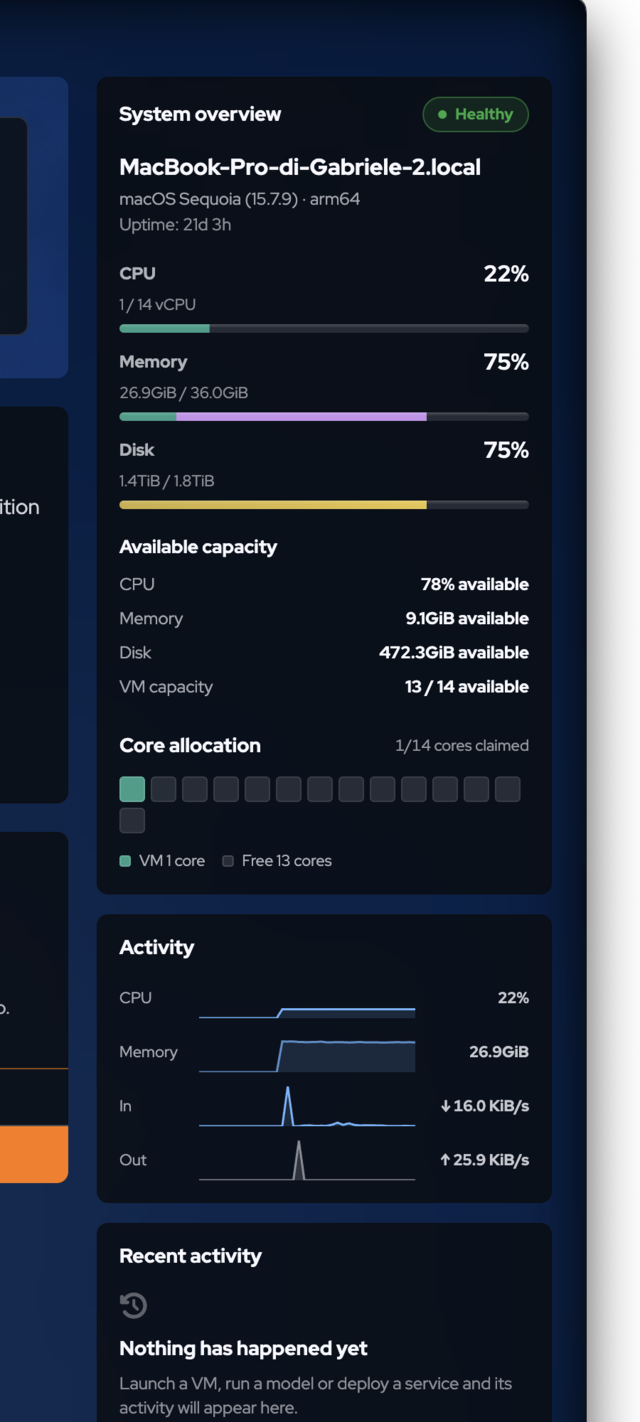
System overview (right rail)
The bottom of Home also offers three entry panels — Create, AI, and Services — that deep-link into Images / Instances, Downloaded / Running models, and Catalogue / Deployments.
A sensible first path
- Confirm the sidebar footer shows All systems healthy.
- Open Installers and verify
llmfit,llama.cpp, and MLX show Ready (see System tools). - Launch a small VM from Compute → Images (Alpine or Ubuntu). See Compute.
- Open the instance Shell and run a command.
- Download a small chat model, Load it, then try a prompt. See AI models.
- Create an
sk-elp-key under Credentials if another client will call the gateway. See Credentials & runner.
Next
- Compositions — wire VMs, LLMs, and services together
- Tutorial — the same path as a timed walkthrough