
AI models
LaunchPad can download open models, score them against this host, load them into a local runner, and expose an OpenAI-compatible API. The AI section is Models → Downloaded → Running models, plus Runner and Credentials (covered next).
Model catalog (Top picks)
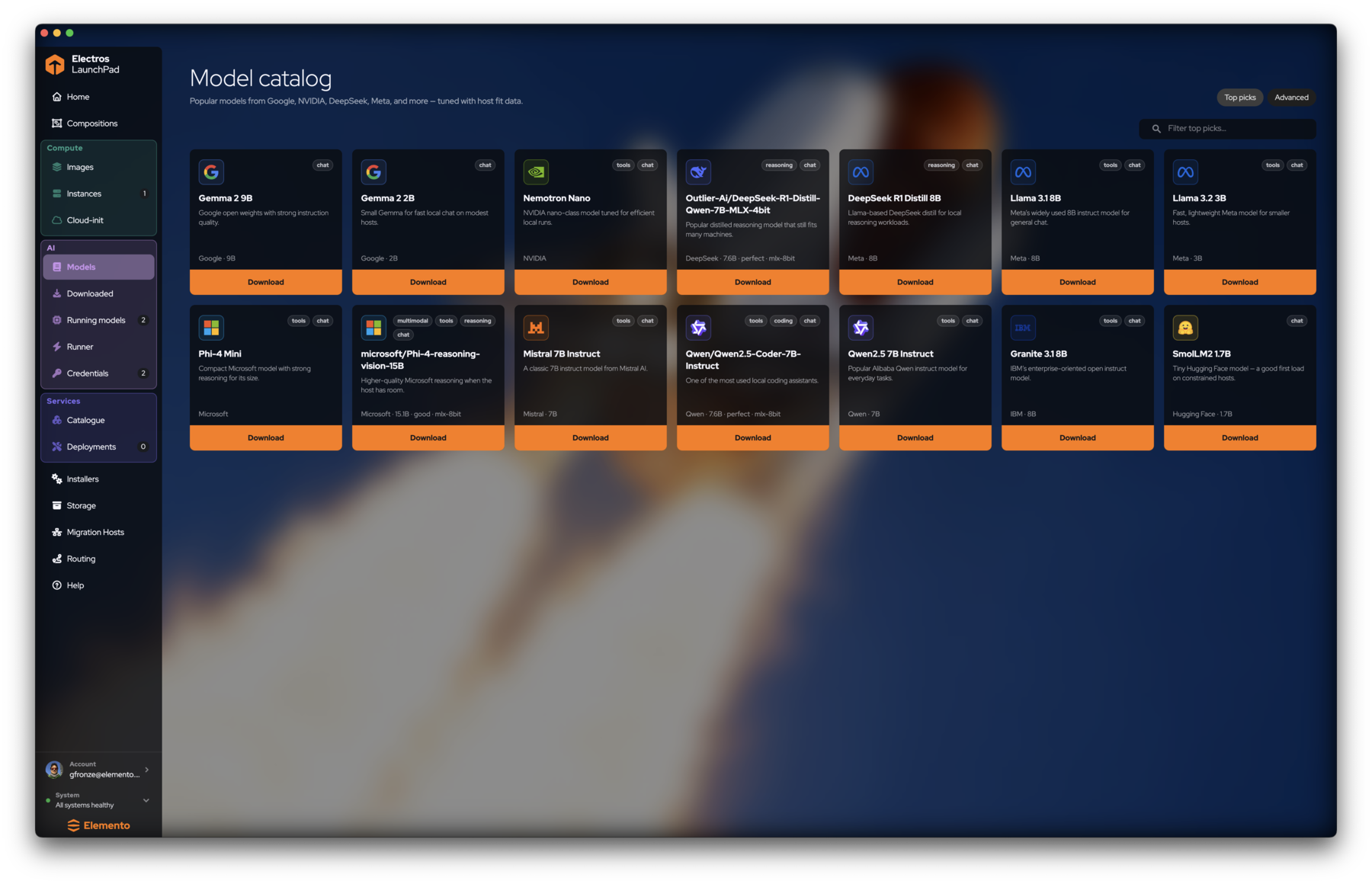
Open AI → Models. Top picks shows curated cards with capability tags (chat, tools, reasoning, coding, multimodal) and a host-fit summary (for example perfect · mlx-8bit).
- Optionally filter with Filter top picks….
- Read size / fit on the card footer.
- Click Download. Artifacts land under Downloaded.
Advanced catalog
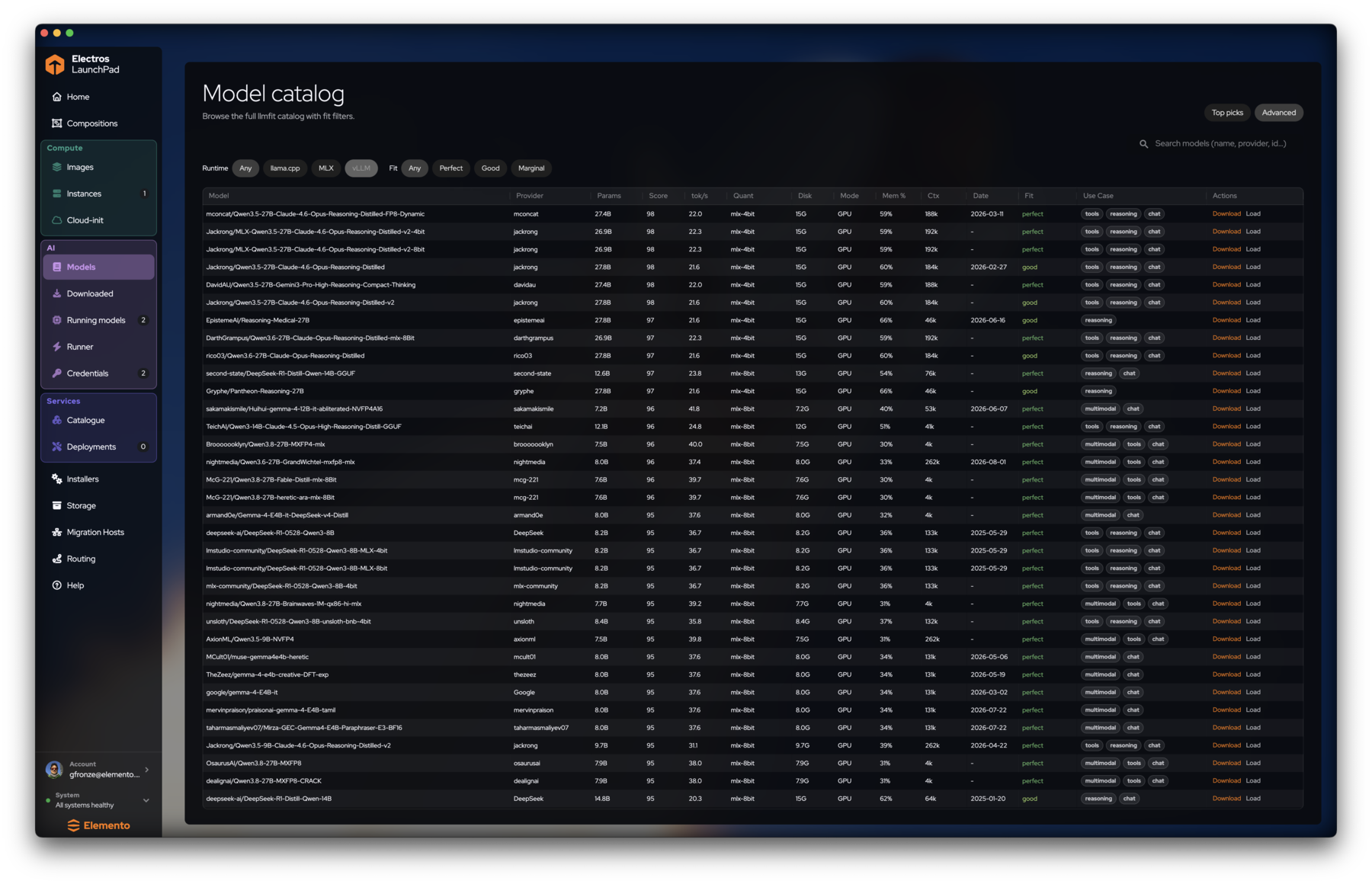
Switch to Advanced for the full llmfit table:
- Filter Runtime: Any / llama.cpp / MLX / vLLM
- Filter Fit: Any / Perfect / Good / Marginal
- Columns include params, score, tok/s, quant, disk, mem %, context, use-case tags
- Row actions: Download and Load
Use Advanced when Top picks does not list the checkpoint you need, or when you care about a specific runtime.
Downloaded
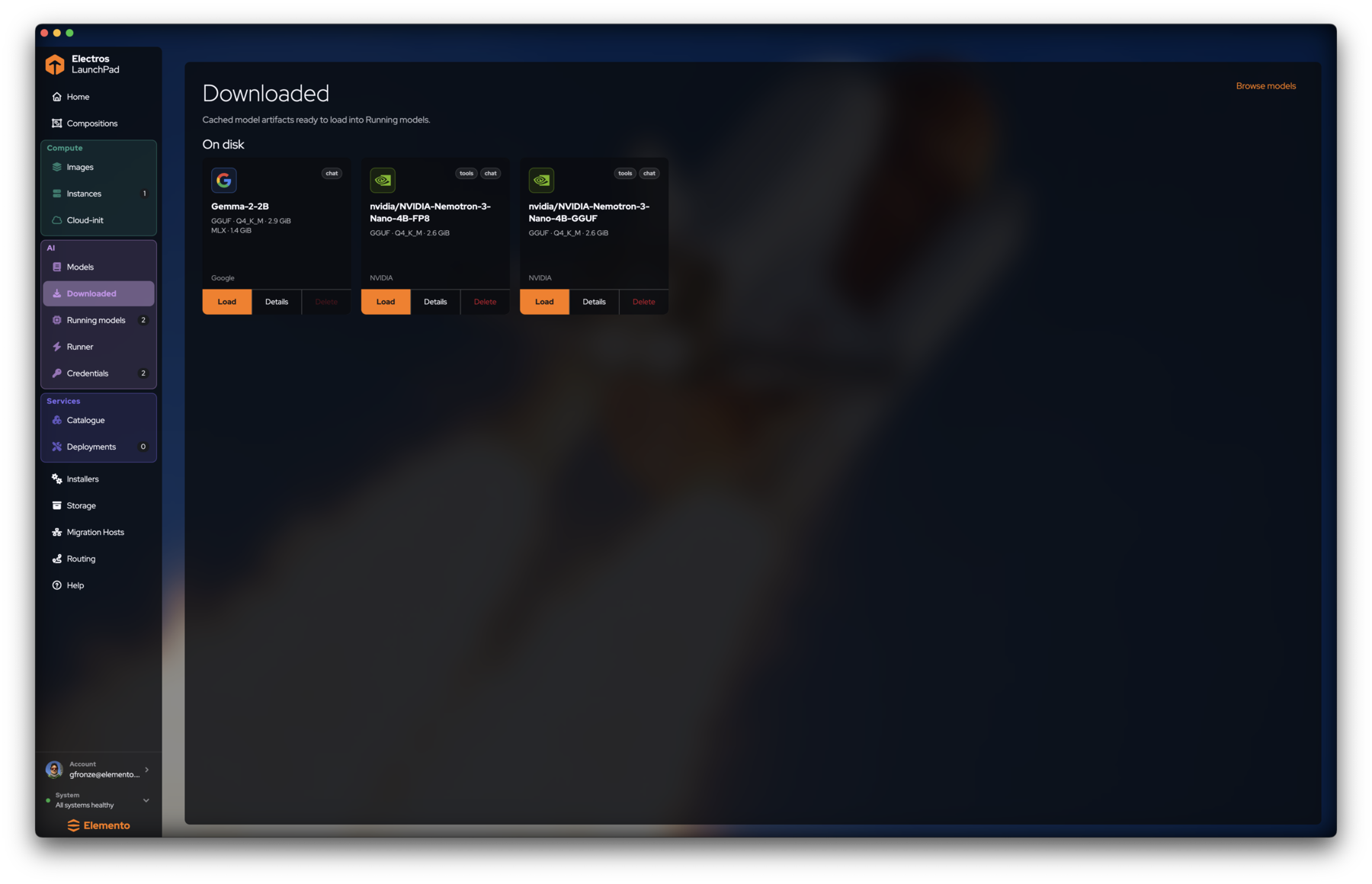
AI → Downloaded lists cached artifacts ready to load.
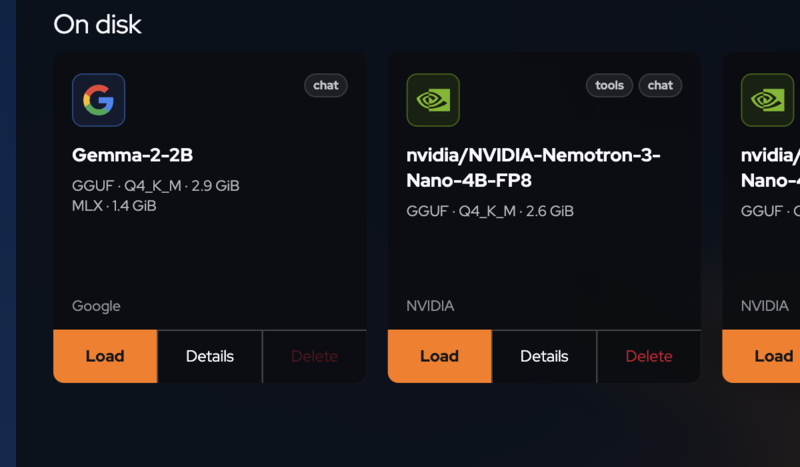
Browse models returns you to the catalog.
Running models
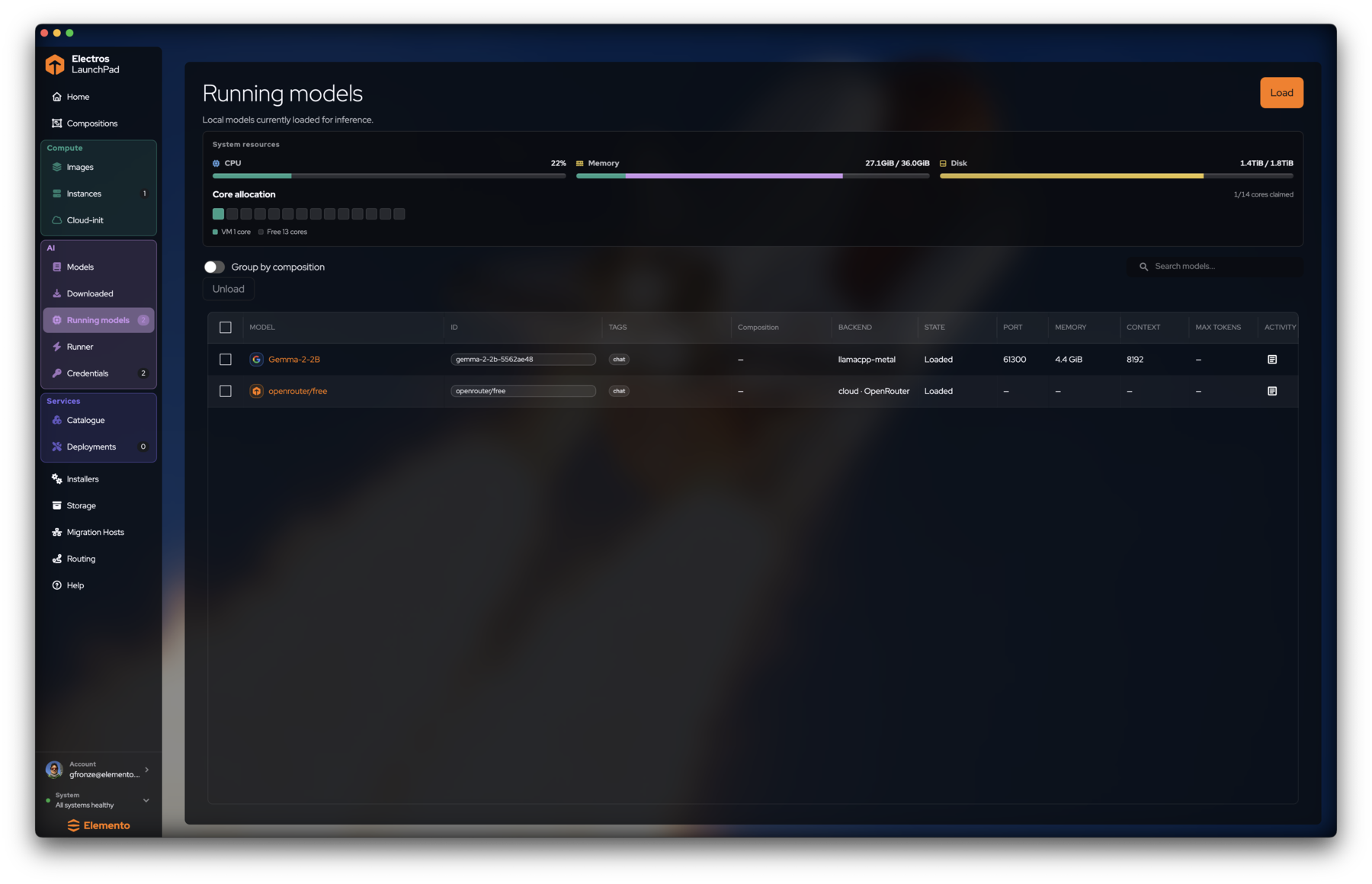
AI → Running models shows what is loaded for inference.
- Check host gauges before loading another model.
- Click Load (top right) to pick from Downloaded, or load from the catalog / Downloaded card.
- Note BACKEND (
llamacpp-metal,cloud - OpenRouter, …), PORT, MEMORY, and CONTEXT. - Select rows and Unload when you need the memory back.
- Click a model name to open logs and the try panel.
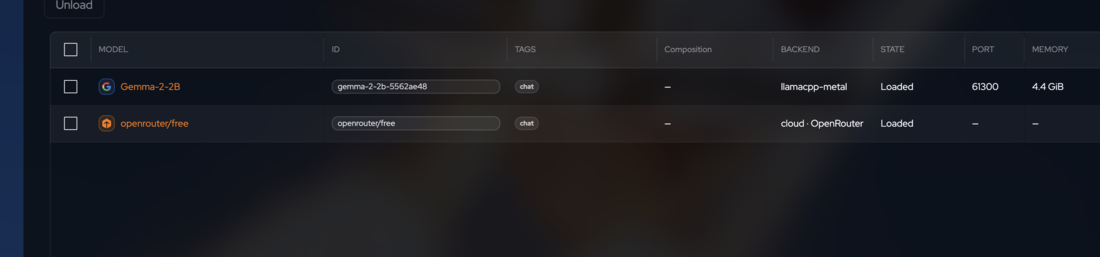
61300). Cloud backends show zero local RAM and route through Credentials.Try this model
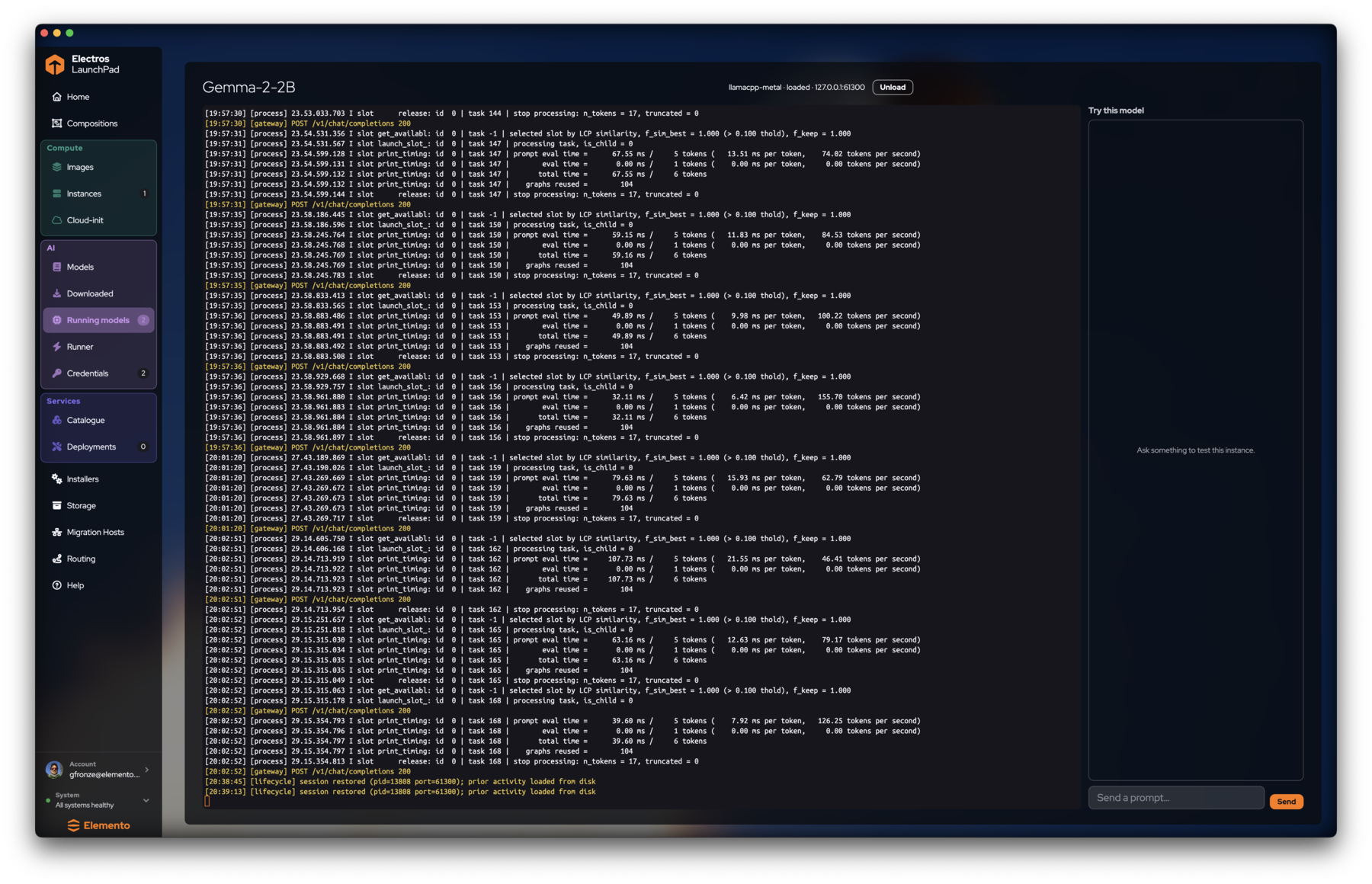
Open a loaded model to see:
- Backend status pill (
llamacpp-metal - loaded - 127.0.0.1:PORT) - Unload
- Live server logs (prompt eval time, tokens/sec)
- Try this model chat: type a prompt, press Send
Suggested first model path
- Installers → confirm llama.cpp / MLX Ready.
- Models → Top picks → download a small chat model (for example Gemma 2B-class).
- Downloaded → Load.
- Open the running model → send a short prompt.
- Under Credentials, create an
sk-elp-key and callhttp://127.0.0.1:11434/v1.
Next
- Credentials & runner — gateway URLs, LAN HTTPS, accelerators
- Services — Open WebUI and other packs that consume the gateway